> For the complete documentation index, see [llms.txt](https://docs.stargaze.zone/llms.txt). Markdown versions of documentation pages are available by appending `.md` to page URLs; this page is available as [Markdown](https://docs.stargaze.zone/create-and-launch/whitelists.md).

# Whitelists

A whitelist (allowlist) lets a specific set of wallets mint before — or on better terms than — the public. Studio 2.0 supports **multi-phase** whitelists, so you can run, say, a free early-supporter phase, then a discounted community phase, then the public mint, each with its own price, timing, and wallet list.

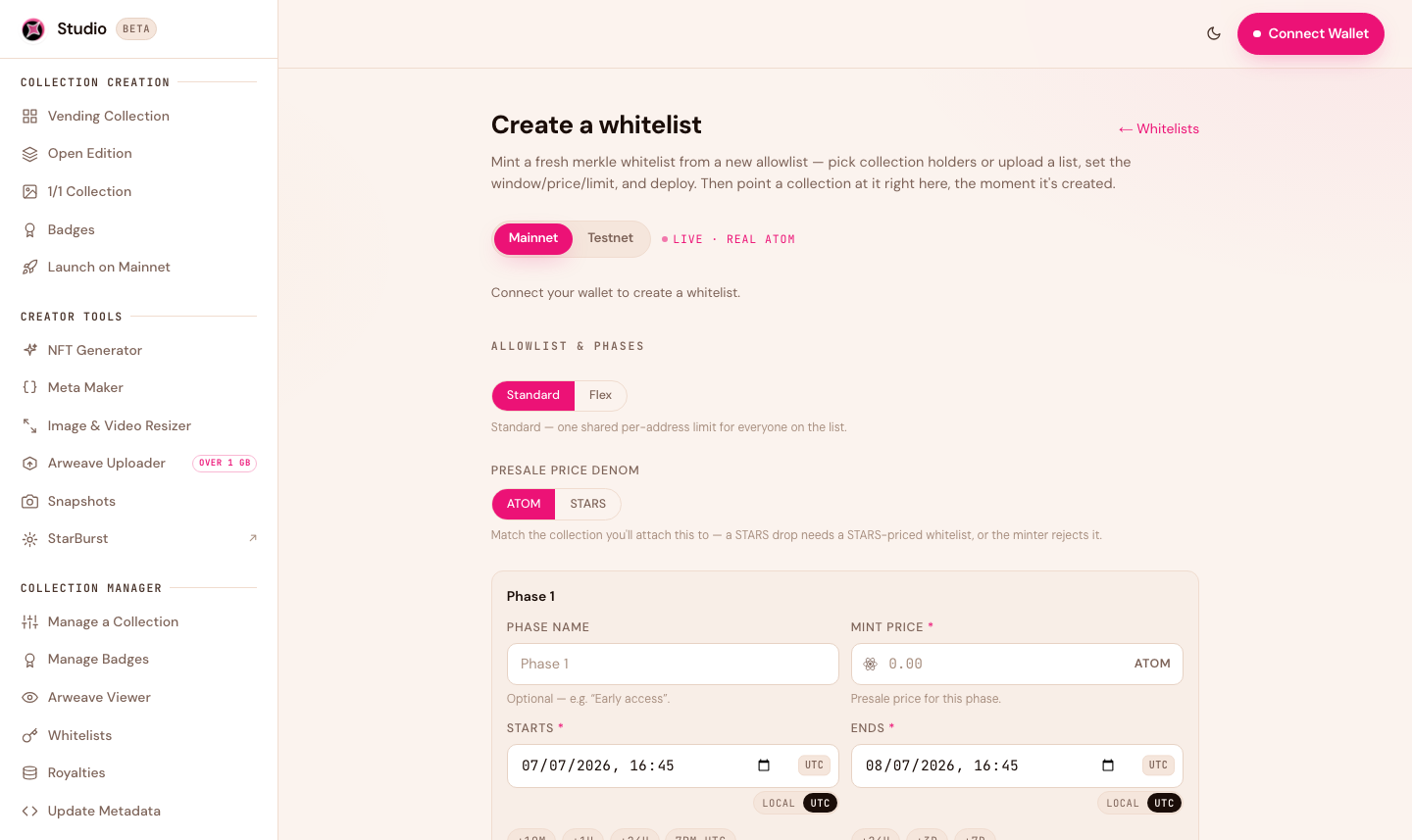
<figure><img src="/files/vADdTytNRcnYKfy9X5Ky" alt="Whitelist manager in Studio 2.0"><figcaption><p>The Whitelist manager: preview and export members, configure phases, and set a whitelist on a collection.</p></figcaption></figure>

## How whitelists work

Each phase has:

* **Its own list of wallets** — these mint during that phase.
* **Its own price and window** — often a discount, opening before the public mint.
* **Per-wallet limits** — how many each address can mint.

Phases run back-to-back: when one ends, the next begins, and the public mint opens after the last phase closes.

## Adding wallets

You can build a phase's list from:

* **A CSV or pasted list** of addresses. Both `cosmos1…` and `stars1…` addresses are accepted (Studio converts them automatically).
* **A holder snapshot** — allowlist the holders of another collection. Build the list with [Snapshots](/create-and-launch/creator-tools.md), then drop it in.

Studio **de-duplicates** every list automatically, so overlapping sources never create problems.

## Preview and export your members

Studio 2.0 keeps a local copy of each phase's member list so you can **preview** it (with a full-list view) and **download it as a CSV** at any time — one list per phase.

{% hint style="info" %}
The whitelist contract itself only stores a cryptographic fingerprint of your list (a "merkle root"), not the addresses. Studio keeps the readable copy for you on the device you built it on. If you need it elsewhere, download the CSV.
{% endhint %}

## Creating and setting a whitelist

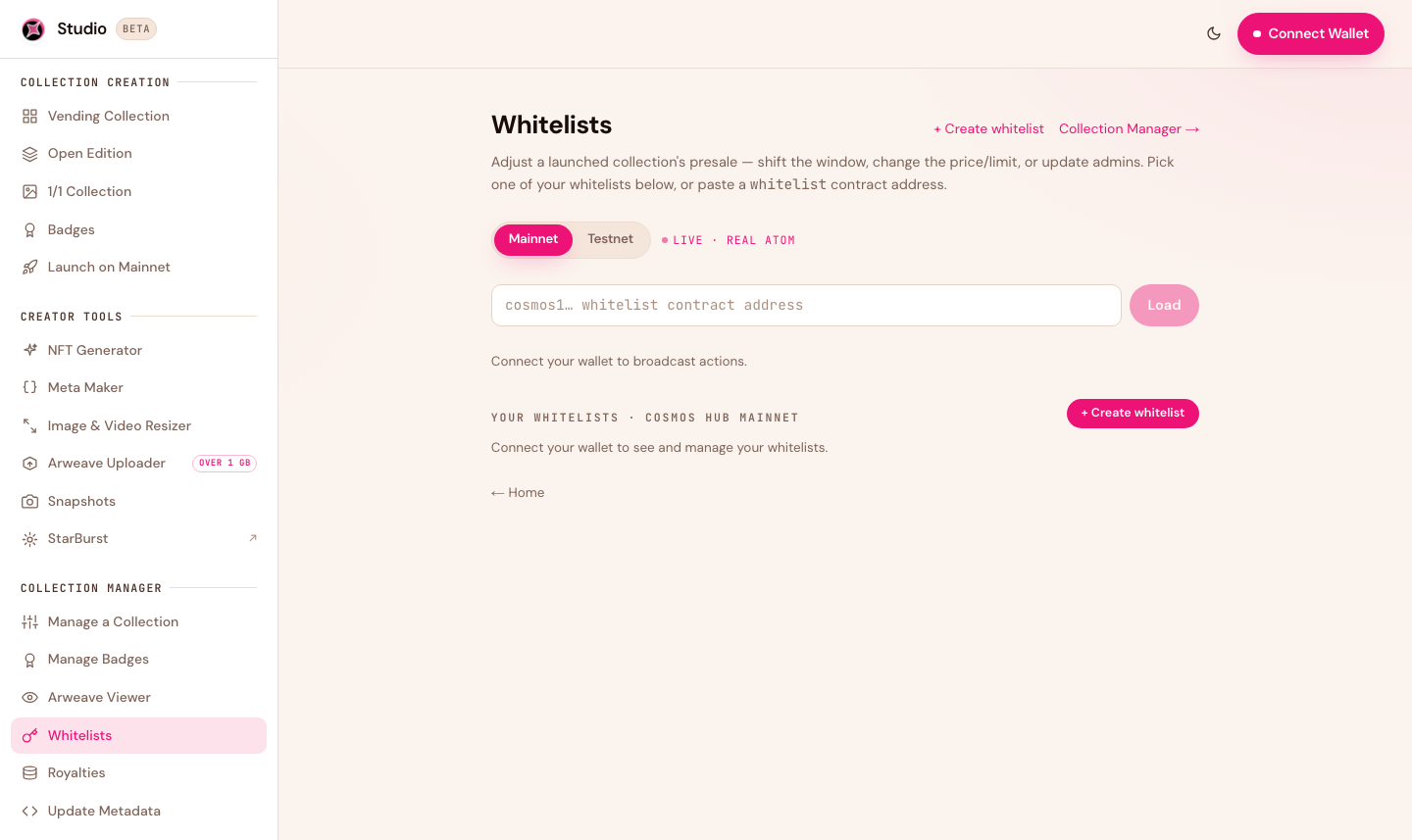
<figure><img src="/files/gACsnCKopDG5gzGKtv7j" alt="Create a whitelist in Studio 2.0"><figcaption><p>Build a standalone whitelist, then point it at any of your collections.</p></figcaption></figure>

You can add a whitelist while creating a collection, or build one on its own and attach it later:

1. Open [Whitelists → Create](https://studio.stargaze.zone/manage/whitelists/create).
2. Add your phases, prices, windows, and wallet lists.
3. Pick the network (testnet or mainnet) and the mint token (ATOM or STARS).
4. Deploy the whitelist, then use **Set on collection** to attach it to any collection you manage.

Studio runs a pre-flight check (matching mint token, mint not yet started) before it sets the whitelist, so you can't accidentally attach an incompatible one.

## Next steps

* [Manage Your Collection](/create-and-launch/managing-your-collection.md) — adjust phase timing after launch
* [Creator Tools](/create-and-launch/creator-tools.md) — snapshot holders to build an allowlist


---

# Agent Instructions
This documentation is published with GitBook. GitBook is the documentation platform designed so that both humans and AI agents can read, navigate, and reason over technical content effectively. Learn more at gitbook.com.

## Querying This Documentation
If you need additional information that is not directly available in this page, you can query the documentation dynamically by asking a question.

Perform an HTTP GET request on the current page URL with the `ask` query parameter, and the optional `goal` query parameter:

```
GET https://docs.stargaze.zone/create-and-launch/whitelists.md?ask=<question>&goal=<endgoal>
```

`ask` is the immediate question: it should be specific, self-contained, and written in natural language.
`goal` is optional and describes the broader end goal you are ultimately trying to accomplish on behalf of the user. GitBook uses it to tailor the answer towards what is most useful for that goal.

The response will contain a direct answer to the question and relevant excerpts and sources from the documentation.

Use this mechanism when the answer is not explicitly present in the current page, you need clarification or additional context, or you want to retrieve related documentation sections.